
Introduction
OMNIS software is designed to streamline laboratory workflows by organizing all instrument controls, data handling and system management into clearly defined work areas. Each work area serves a specific purpose and allowing users to move logically from sample setup to result evaluation while maintaining full traceability and compliance. Understanding how these work area function and interact is key to working efficiently and confidently within OMNIS. This article provides an overview of the OMNIS work areas and the role each one plays in day-to-day operation, helping new and experienced users alike navigate the software with ease.
Work Areas
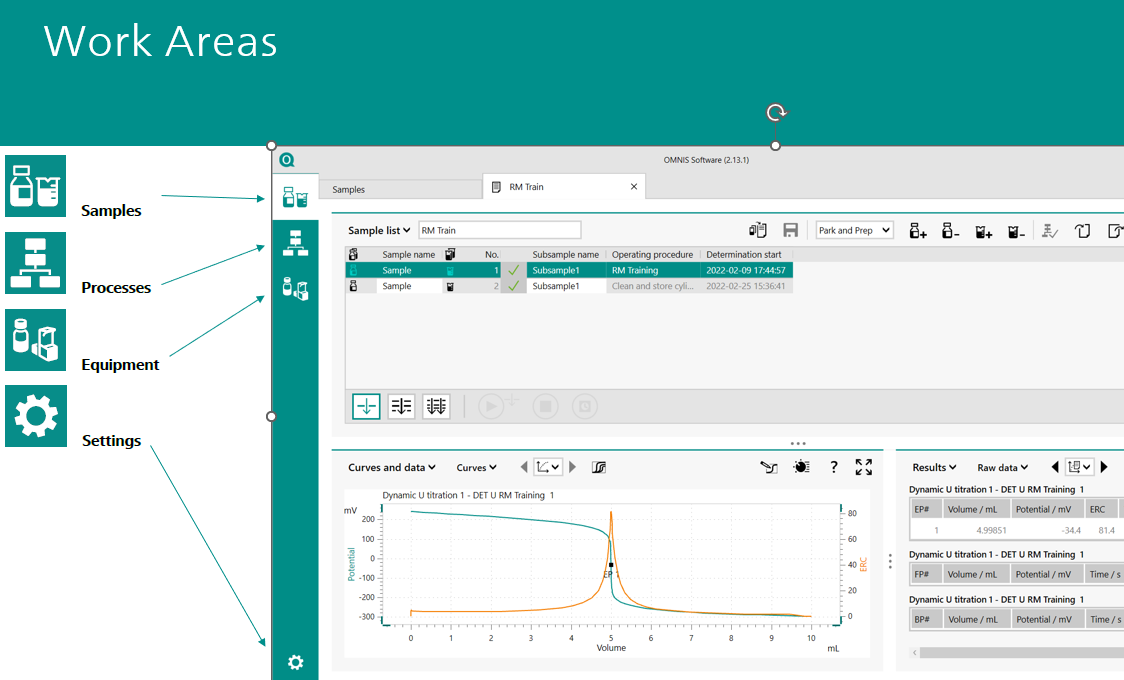
The following work areas are available in OMNIS: Samples, Processes, Equipment, Models (in versions 4+) and Settings.
Subsections
Selecting a work area, will open up various subsections.
Samples Work Area
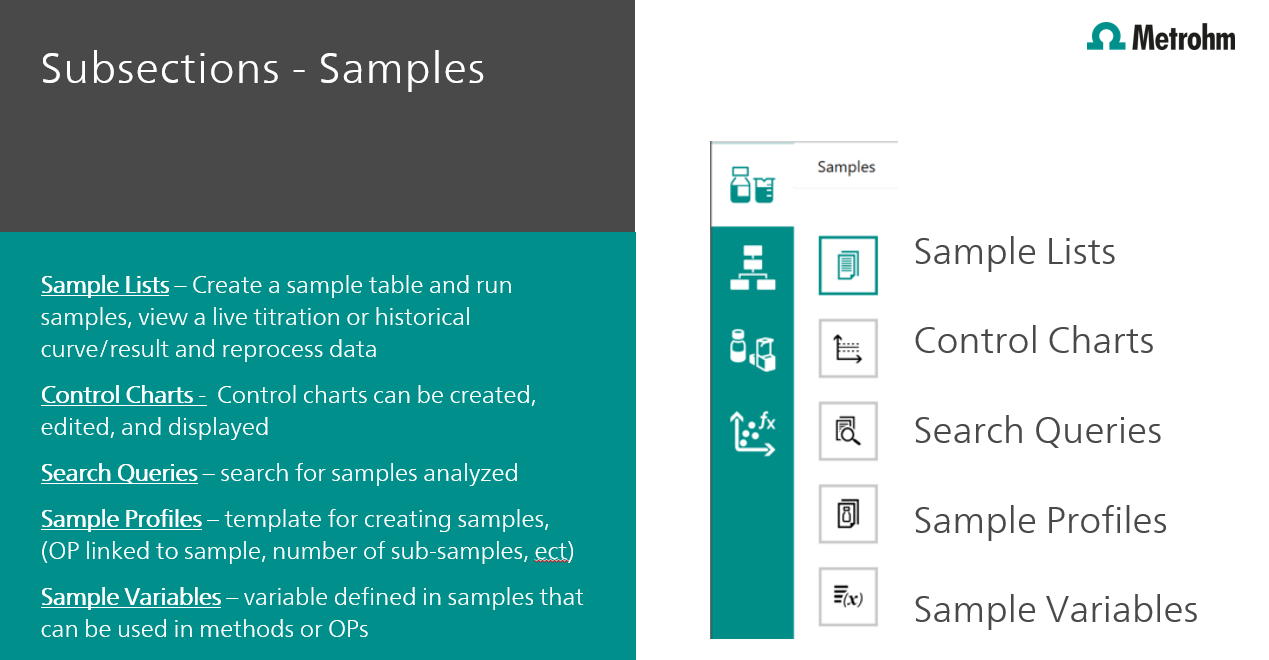
- Sample lists - create a sample table and run samples, view a live titration or historical curve/results and reprocess data.
- Control charts - control charts can be created, edited and displayed which give you a visual overview of system performance over time.
- Sample queries - search for previously analyzed samples with customizable filters.
- Sample profiles - create new profiles, import or export existing profiles as well as a general use template that comes built into the system. Here, an operating procedure is linked to the sample, number of sub-samples, etc.
- Sample variables - variables defined in samples that can be used in methods or operating procedures.
Process Area
- Operating Procedures (OPs) - foundation of your analysis workflow. OPs are built using methods and commands that can be arranged to run either sequentially or in parallel. Together, they define the step-by-step process for analyzing samples.
-
Methods - individual sets of commands, also arranged in sequence or in parallel, that carry out specific tasks in an operating procedure. Every method must be assigned to a work system and be part of an operating procedure in order to function within OMNIS.
Equipment Area
- Instruments - all reserved instruments are displayed. In this subsection you can reserve an instrument, manage its settings, or operate it manually. It's important to note that an instrument remains available to ALL users on the network until it is reserved by a specific user.
- Work systems - create, edit or delete work systems. You can also see a list of all previously saved systems, making it easy to reuse or modify existing configurations.
- Sensors - manage both digital and analog sensors. You can also create new analog sensors and view any previously saved ones in the system.
- Solutions - create, edit and manage your titration solutions and reagents. All historical solutions are displayed here for easy reference.
- Custom calibration buffers - if you are not using commercially available pH buffers, this is where you can define your own custom buffer solutions for calibrating pH electrodes. You can also see all historical buffers that have been created in the system.
- Standards - import or edit standard data. You'll see details like product type, name, serial number and certification date for each saved standard.
-
Sample racks - current and historical sample racks are displayed. You can also import customized sample racks into the system. The overview shows the rack type and name, the sample robot or changer it's associated with, its position on the robot, and how many sample positions are available on that rack.
Models Work Area
The models work area is only available in later OMNIS versions (4.0+) and is intended for internal and advanced users. If you would like more information or training on this topic, please explore our Custom Training options.
Settings Work Area
- General settings - review and modify user interface settings such as display language, adjust print and notification preferences and access important system tools like emergency stop and preliminary run test functions.
- Advanced settings - this section handles system language configuration (different than display settings) and user management features. It includes tools for CFR part 21, audit trails, electronic signatures and password settings.
- Software licenses - allows you to activate or transfer software licenses. This typically does not need to be accessed by everyday users.
- Database settings - displays your current databases and shows how much storage is being used. From here, you can create backup databases and enable automatic backup to ensure your data is protected.
- Scheduler - displays all tasks that can be carried out automatically. You can view active tasks, as well as create or delete scheduled tasks directly from this screen.
Additional Support
If you encounter any issues or need additional help, please submit a support ticket through Metrohm Technical Support.
For additional training on any of these topics, explore our available Metrohm Titration Training courses or learn more about our Metrohm Custom Training options.